Scheduling Widget Integration · Integration to your website
Find your URL
With Agendize, it's possible to fully customize access to your booking widget through its URL.
First of all, you can find your integration URL from the Installation > All buttons tab. Choose your button and click Install :
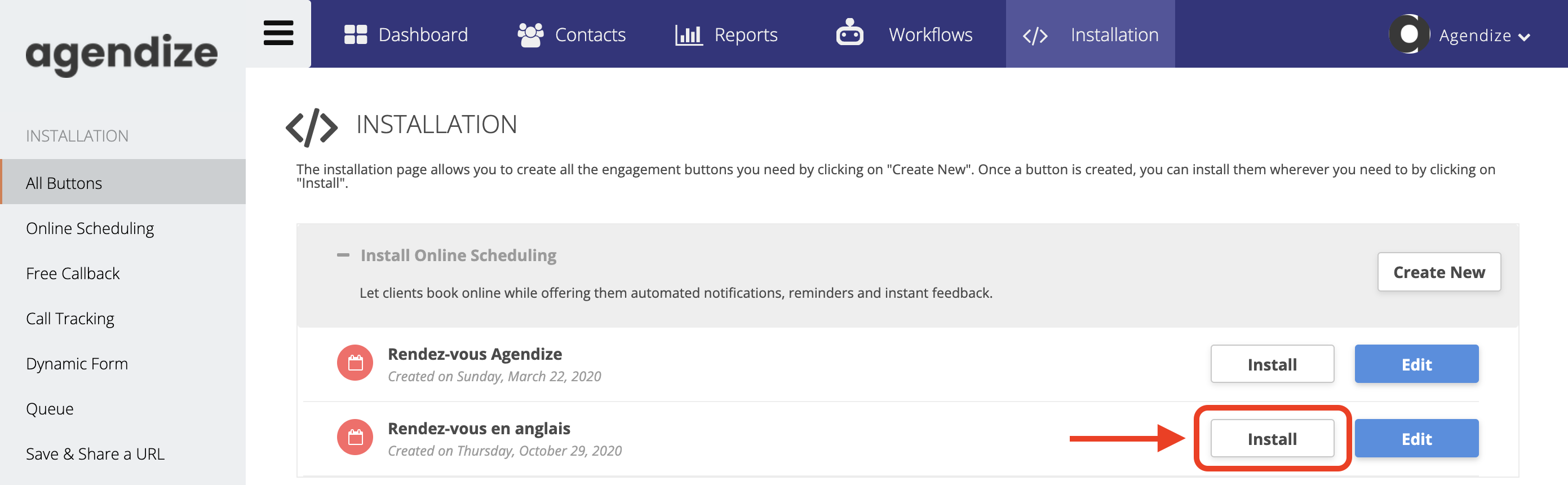
You access to the integration options panel. The URL we're interested in for this chapter is the Direct URL:

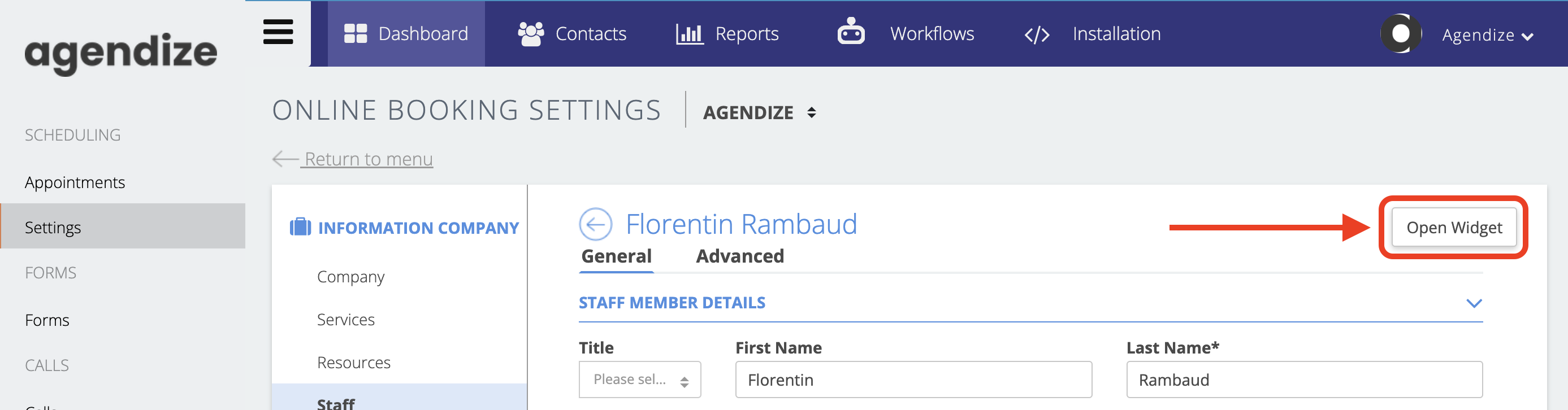
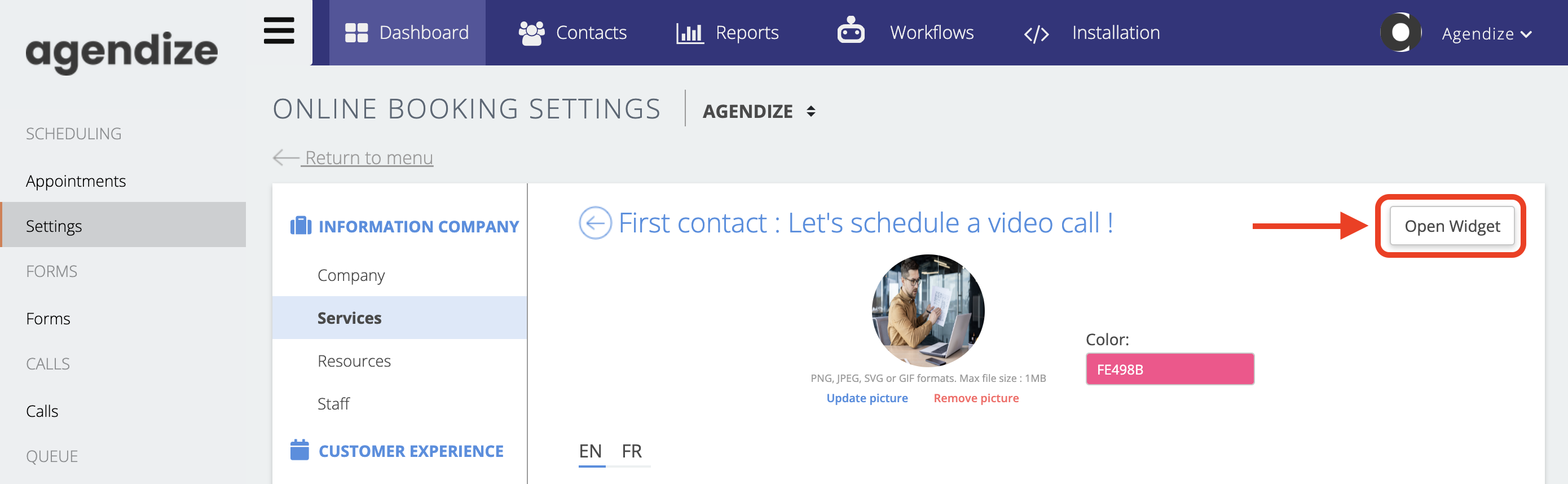
Secondly, and very easily, you can access a specific URL quickly via the back-office. Here are the three options:
Schedule an appointment from a specific team member:
Schedule an appointment from a specific service:
Schedule an appointment via the default widget:

Simple construction
We'll now take a look at the customization of this URL, which is user access to the appointment-setting widget. If you look closely, you'll see something like this :
The section we're most interested in is after the "?" Remove everything after this sign and let's take a closer look at the remaining elements.
The "c" parameter here corresponds to the widget's ID, but it could simply be that of your company. If you use your company's ID to replace the widget's ID, you'll get the same result:
https://france.agendize.com/web/widget/?c=1315848989318848
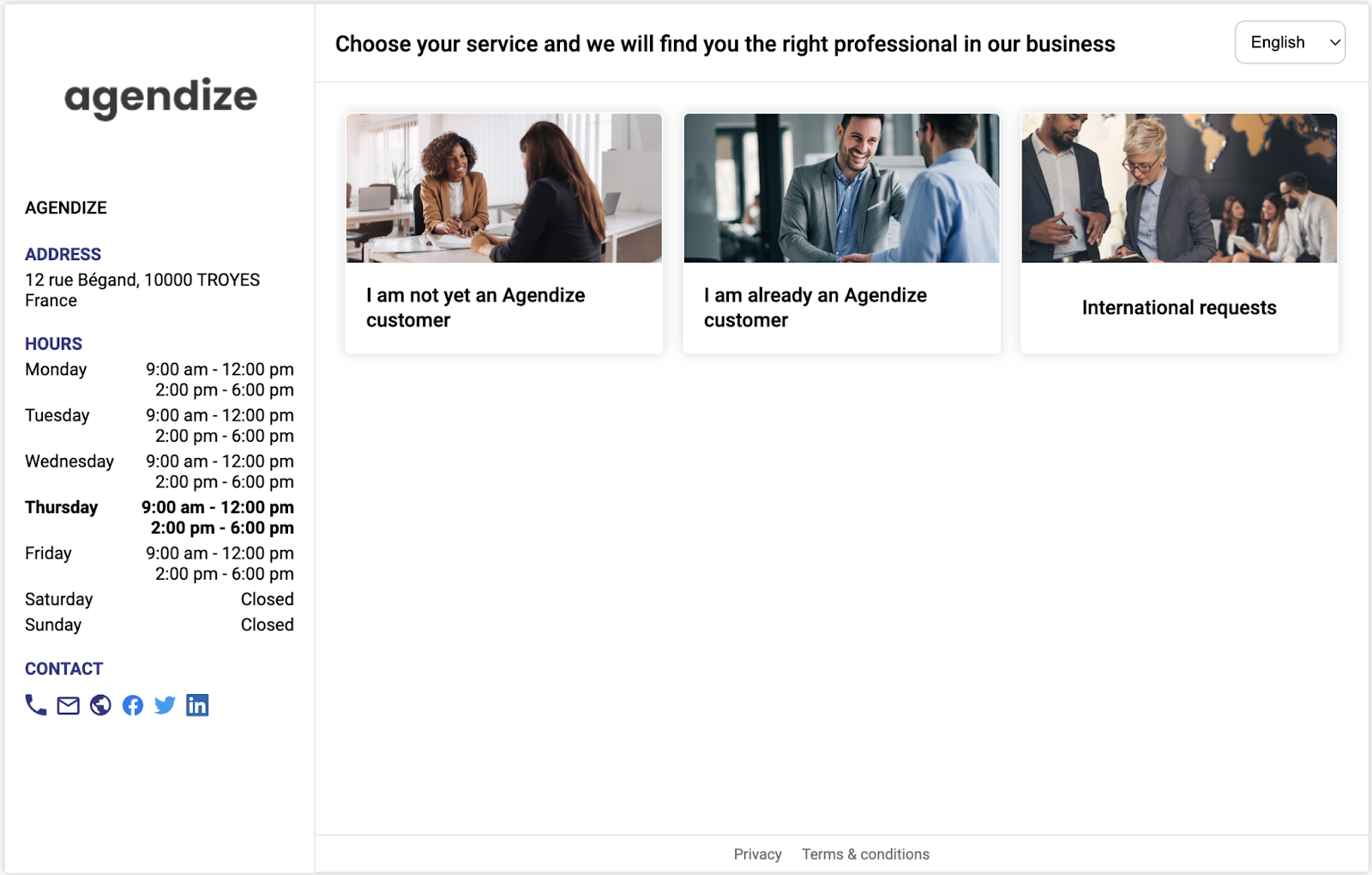
At this point, there are a number of possibilities, such as directing the user to a service, a team member or both. The method is simple: just add the corresponding parameters after the URL, interspersed with an "&":
- For a specific service: service=service_id
- For a specific team member: staff=staff_id
This results in:
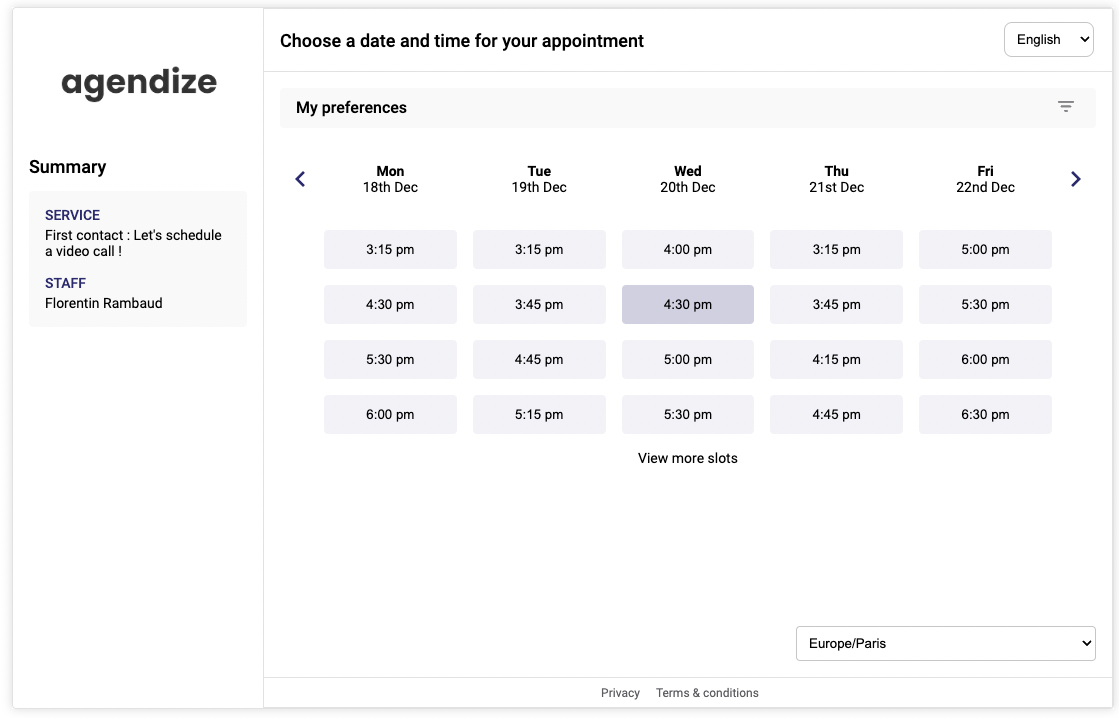
In addition, you can redirect the user to a service group with the following parameter:
- For a specific group: serviceGroup=group_id
This is how it works:
https://france.agendize.com/web/widget/?c=1315848989318848&serviceGroup=2016690268132272&lang=en
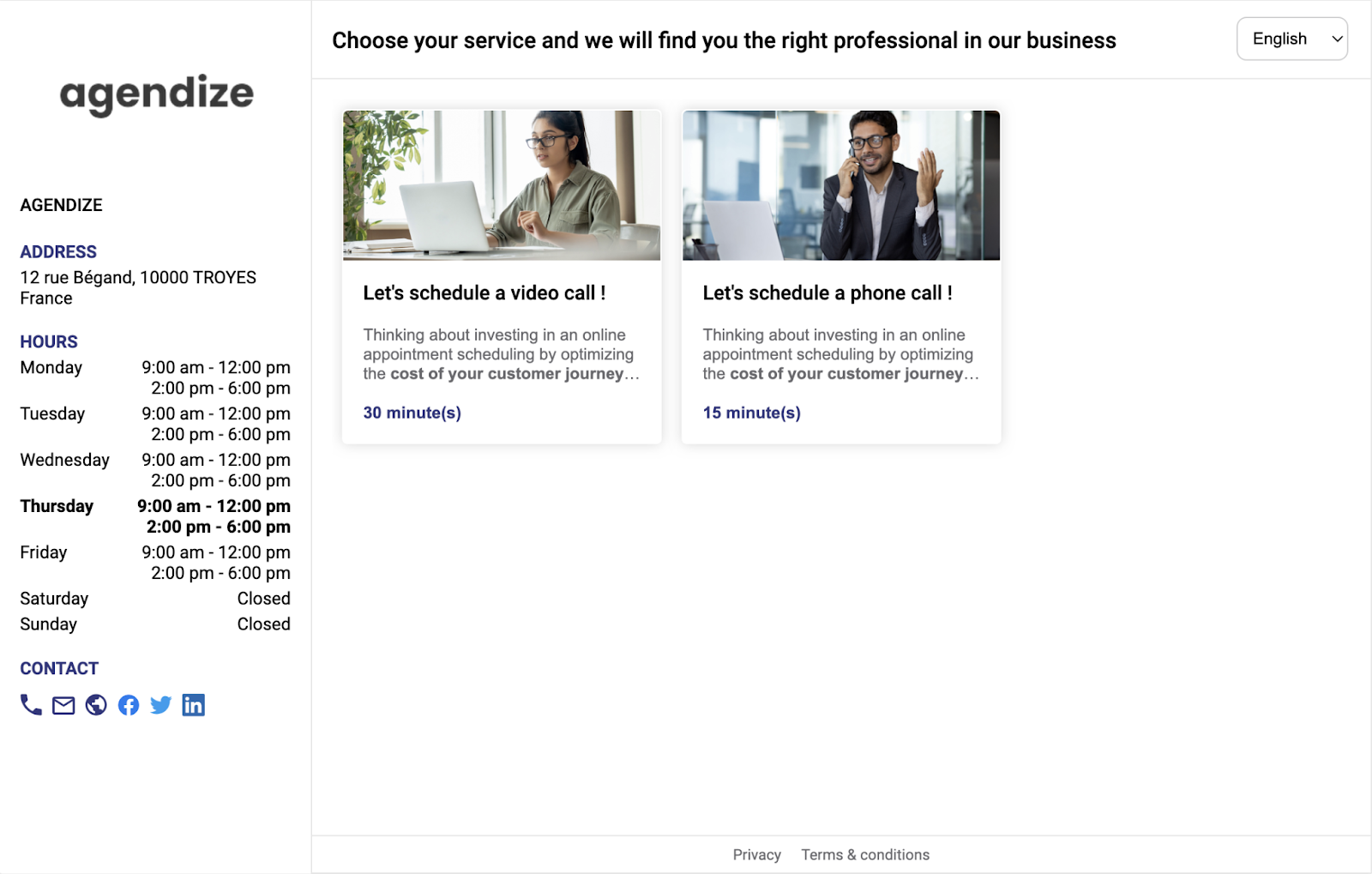
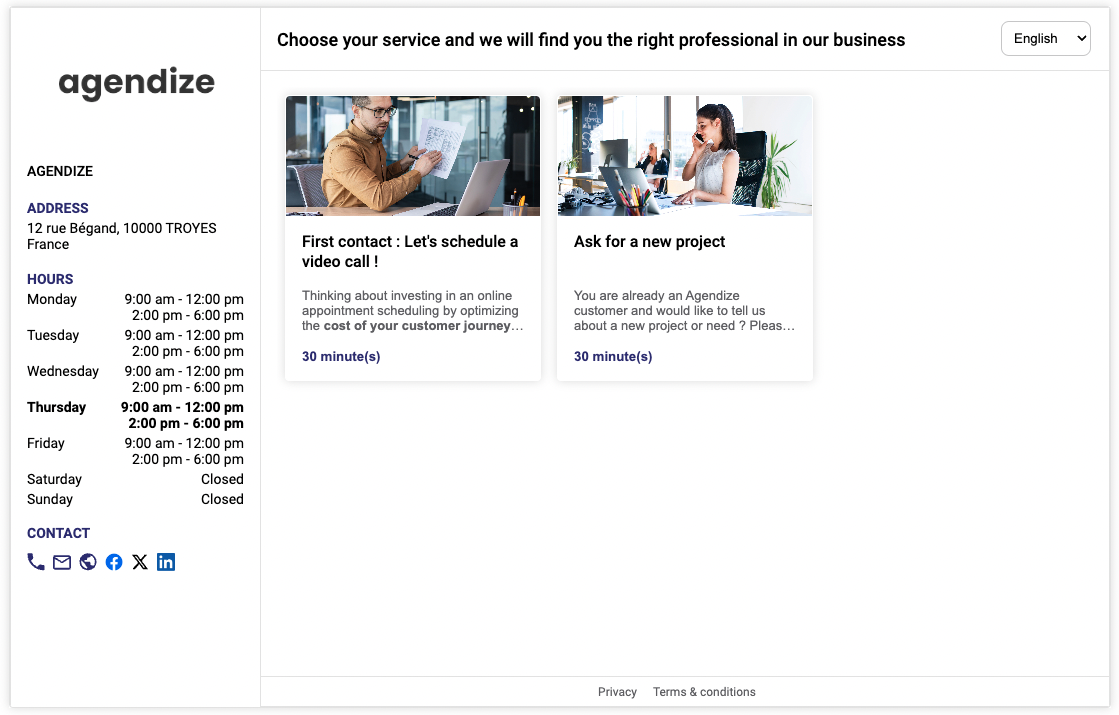
By specifying the service group, it is not necessary to add the service parameter. However, you can filter the services in this group according to a specific team member:
To sum up this part, here are the parameters to remember:
- For a specific service: service=id_du_service
- For a specific team member: staff=staff_id
- For a specific group: serviceGroup=id_du_groupe
- For a team member group (Widget V3): staffGroup=staff_group_id
Advanced URL construction
Based on what we've looked at above, there are still a number of ways in which you can fine-tune the behavior of the widget.
First you can specify the language in which the widget should be displayed, simply by adding the following parameter:
- For a specific language: lang=lang_iso_code
Which gives the following result:
https://france.agendize.com/web/widget/?c=1315848989318848&serviceGroup=1016684175226076&staff=2016052894685075&lang=en
If this parameter is left blank, the widget's default language will be the same as the user's browser.
- German (lang=de)
- English (lang=en)
- Spanish (lang=es)
- French (lang=fr)
- Italian (lang=it)
- Dutch (lang=nl)
- Portuguese (lang=pt)
To force appointments from a certain date, simply add the following parameter:
- Specific start date: date=yyyy-mm-dd
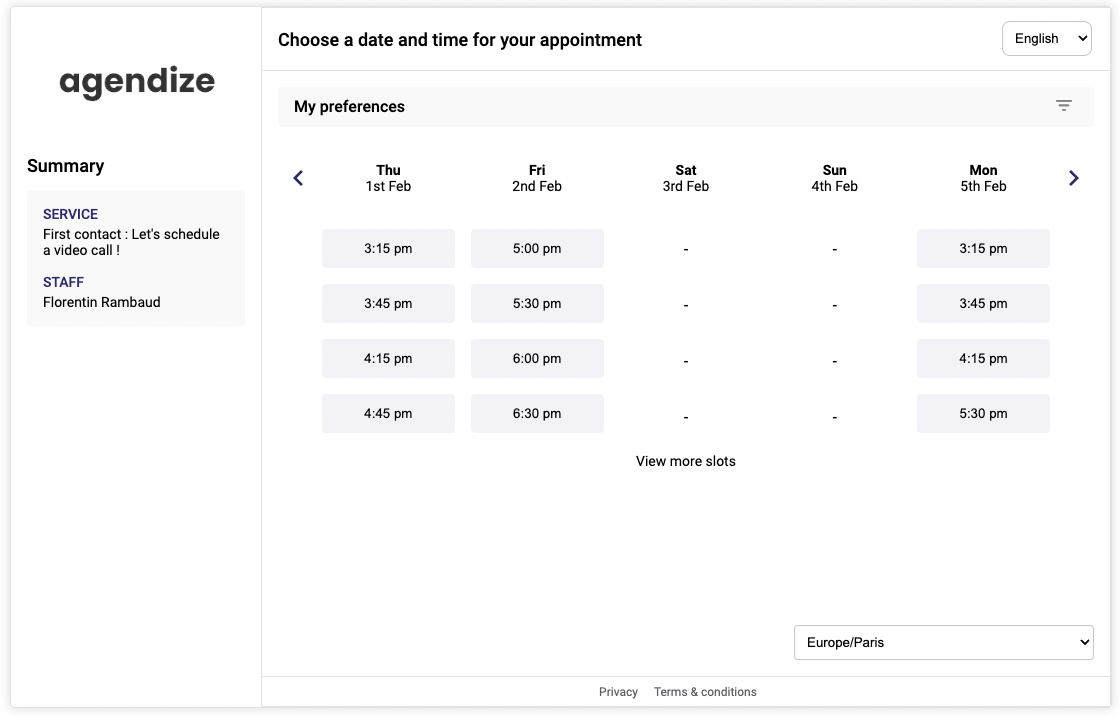
Now, if you need to retrieve statistics on appointment booking, you can filter your targets using one or two parameters that suit your needs:
- Specific source: source=your_source
- Specific button: button=id_du_bouton
Brief explanation of these two elements:
Firstly, let's talk about the source. This parameter has no real influence on the behavior of the scheduling widget itself on the user side. But it does allow you to specify the source of your appointment beforehand; more precisely, where the appointment was made. For example, if you place an appointment booking link on GMB (Google My Business), you can add the parameter "source=gmb" to your URL to quickly recognise appointments coming from your GMB profile. If you place an appointment booking link on your website, you can configure the "source=website" parameter.
In the Reports tab of your back office, you can now filter your appointment statistics by source, allowing you to optimise your communication according to your results.
Next, the button. Like the previous one, this parameter has no influence on the behavior of your widget on the user side. But it can be very important to you. As we did at the very beginning of the chapter, let's quickly return to the Installation > All buttons tab. Select the button you want to customise the appointment booking to display the integration options.

Note the button parameter in this URL. This ID allows you to target appointment booking based on a particular button. The interest : When you create a button, it allows you to create a fully personalized report on the target audience for that button.
- Find out more: Creating and viewing reports
Here's a fully customized URL:
Use of external IDs
Note that each ID used in the URL can be replaced by external IDs. But how do you access these particular IDs?
For the external ID of a service, for example, you need to go to the page for that service.

Once your ID has been defined and the page saved, all you have to do is place it in the URL instead of the series of numbers :
And there you have it, a much more pleasing URL!
Bear in mind that your constructed URL can also be used to customise your iFrame integration.
- Find out more: Integrate appointment scheduling into your website
Pre-fill fields
If you want to send this appointment scheduling button to a specific customer, you also have the option of pre-filling the widget's fields to make it easier for the customer to navigate through the widget.
To do this, you first need to identify the fields in your widget that need to be pre-filled in the Console tab, then Settings > Widget > Widget fields. For the example, we'll take the last name, first name, email and phone number.
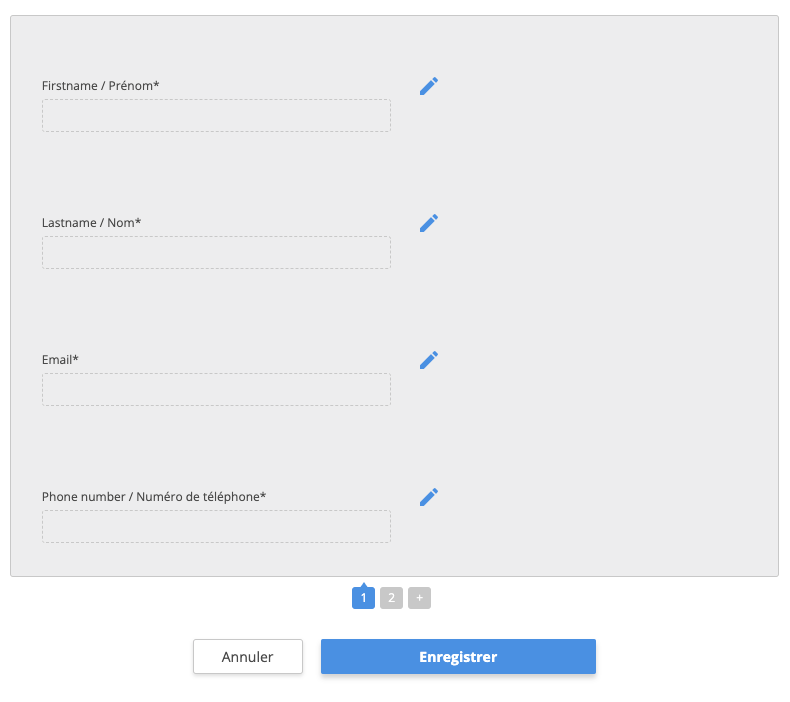
To include these fields in the URL, simply add the following parameters:
- firstname=customer-firstname
- lastname=customer-name
- email=customer-email
- phone=phone-number
Using our last URL, we have :
https://france.agendize.com/web/widget/?c=agendize&lang=en&service=first&staff=frambaud&date=2024-02-21&button=1016039289213433&source=tutoriel&firstname=James&lastname=Tibérius%20Kirk&email=j.tiberius@agendize.org&phone=0102030405
At the end of the customer's journey, all he or she has to do is validate or go directly to the next part of the form.
You now have all the tools you need to personalize the user journey.