Scheduling Widget Integration · Third-party store locator
Agendize has partnered with Evermaps to provide store networks with integrated solutions that boost their local web-to-store performance.
With more than 10 years of expertise in optimizing the digital visibility of store networks (Store Locator, Google My Business, local SEO, customer review management…), Evermaps technology, ecosystem and Account Managers deliver optimal local performance, measured and managed through a single Console, for networks such as Allianz, LCL, Groupama)
This article presents the possibilities offered by this partnership. Please contact your Agendize and/or Evermaps account managers with any questions to carry out an audit of your use cases.
Adding your booking buttons to the Evermaps Store Locator
Assignment by catchment area, search filters, route-based search, specific assignments, … Evermaps lets you build a custom store locator to find the store or branch best suited to handle your prospect's or customer's appointment request. Here is an example:
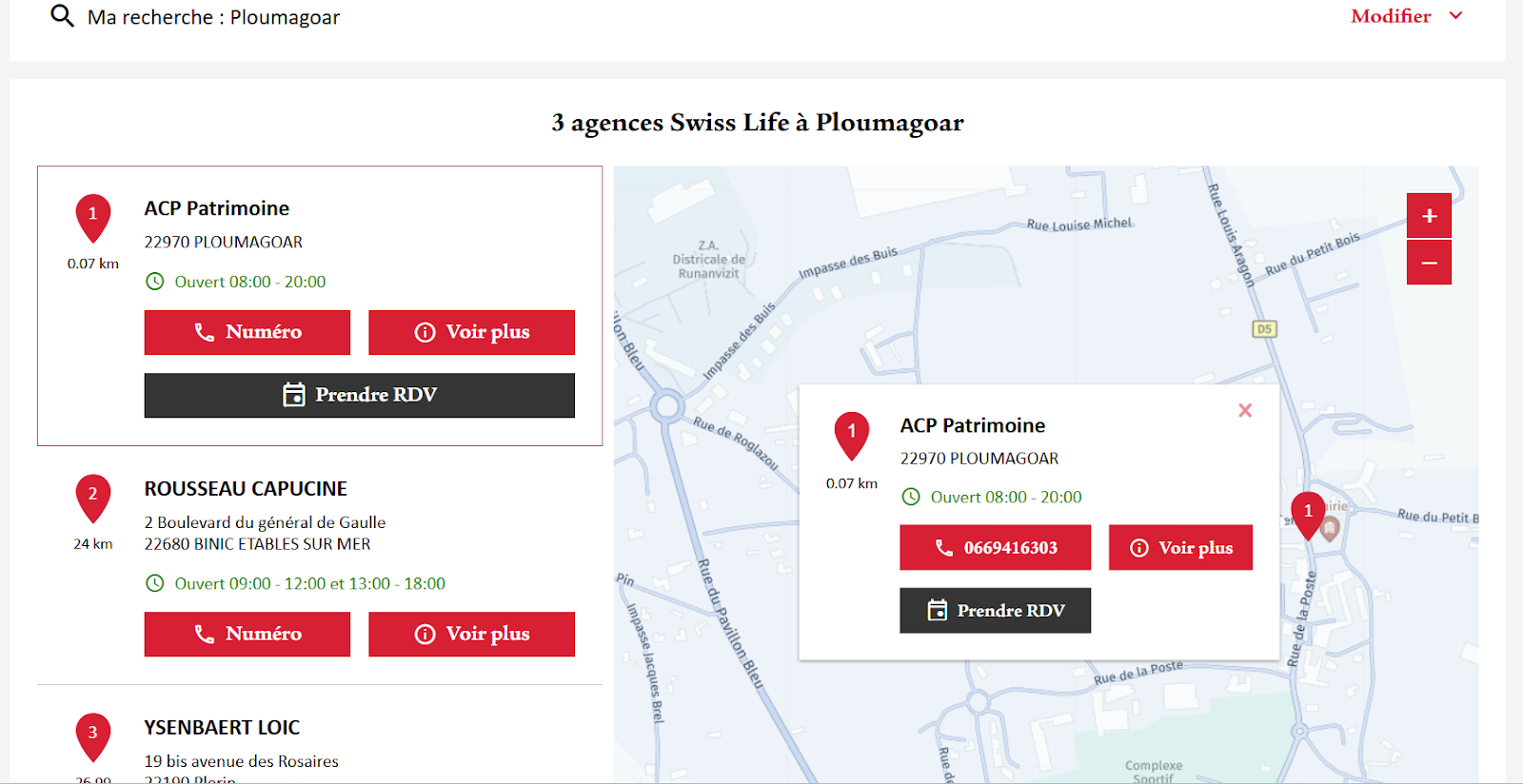
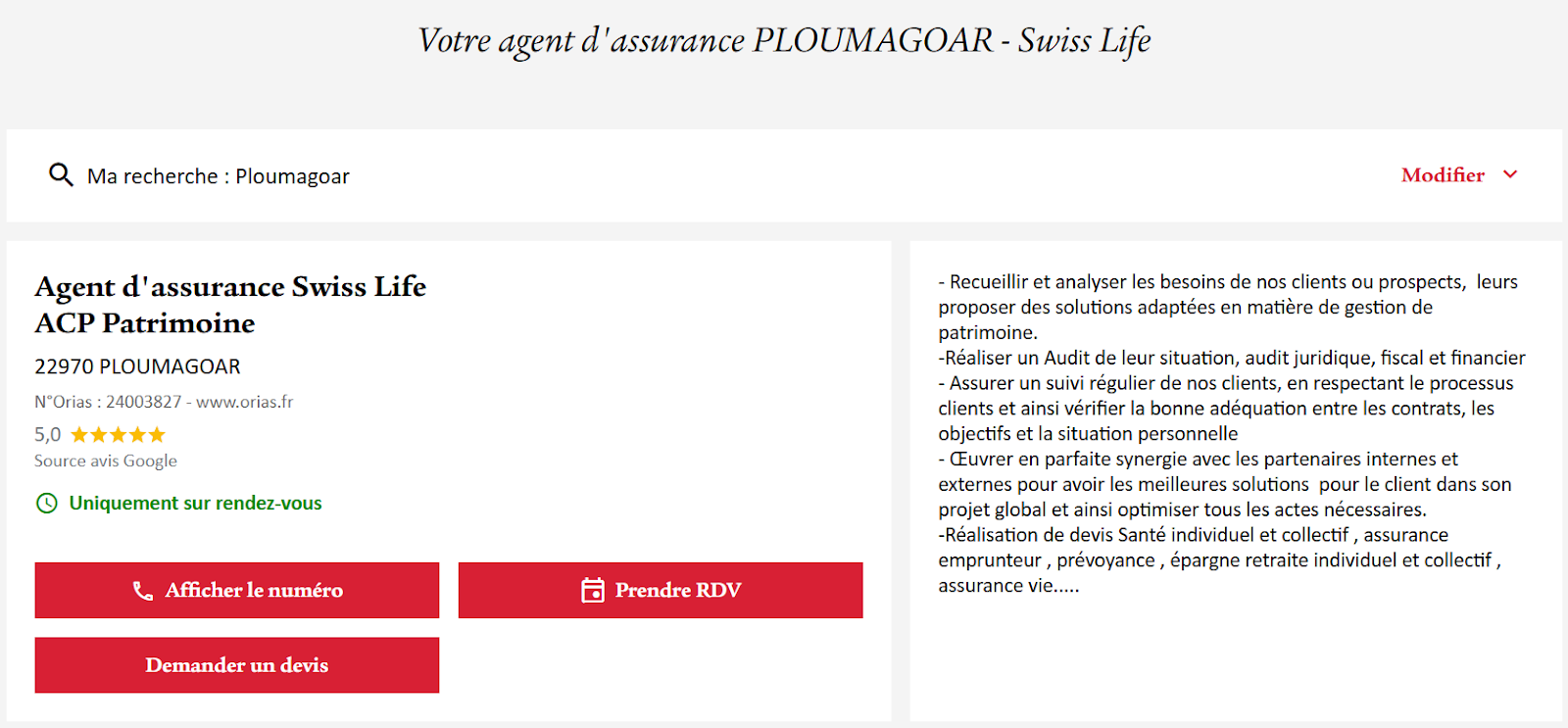
Agendize buttons can be added to the search results page, as well as to the local pages of your stores and branches.
How to do this?
- Contact your Evermaps and Agendize Customer Success teams to validate the backward schedule
- Choose how the Agendize widget is integrated into your Store Locator
- IFRAME
- POP-IN
- Direct URL (redirect)
- Alignment, verification and mapping of locations between the solutions (via the Agendize externalID field)
- Check the enable Agendize box to publish the widgets on the selected pages
Prerequisites:
- Agendize online scheduling
- Evermaps Store Locator
Adding your booking URL to your Google Business Profile listings managed by Evermaps
When users search for your business on Google, your Google Business Profile (GBP) page should be as complete as possible. Did you know that you can let your customers book an appointment directly from their Google results page? An Appointments field is specifically provided on the results page to direct your customers to your booking page.
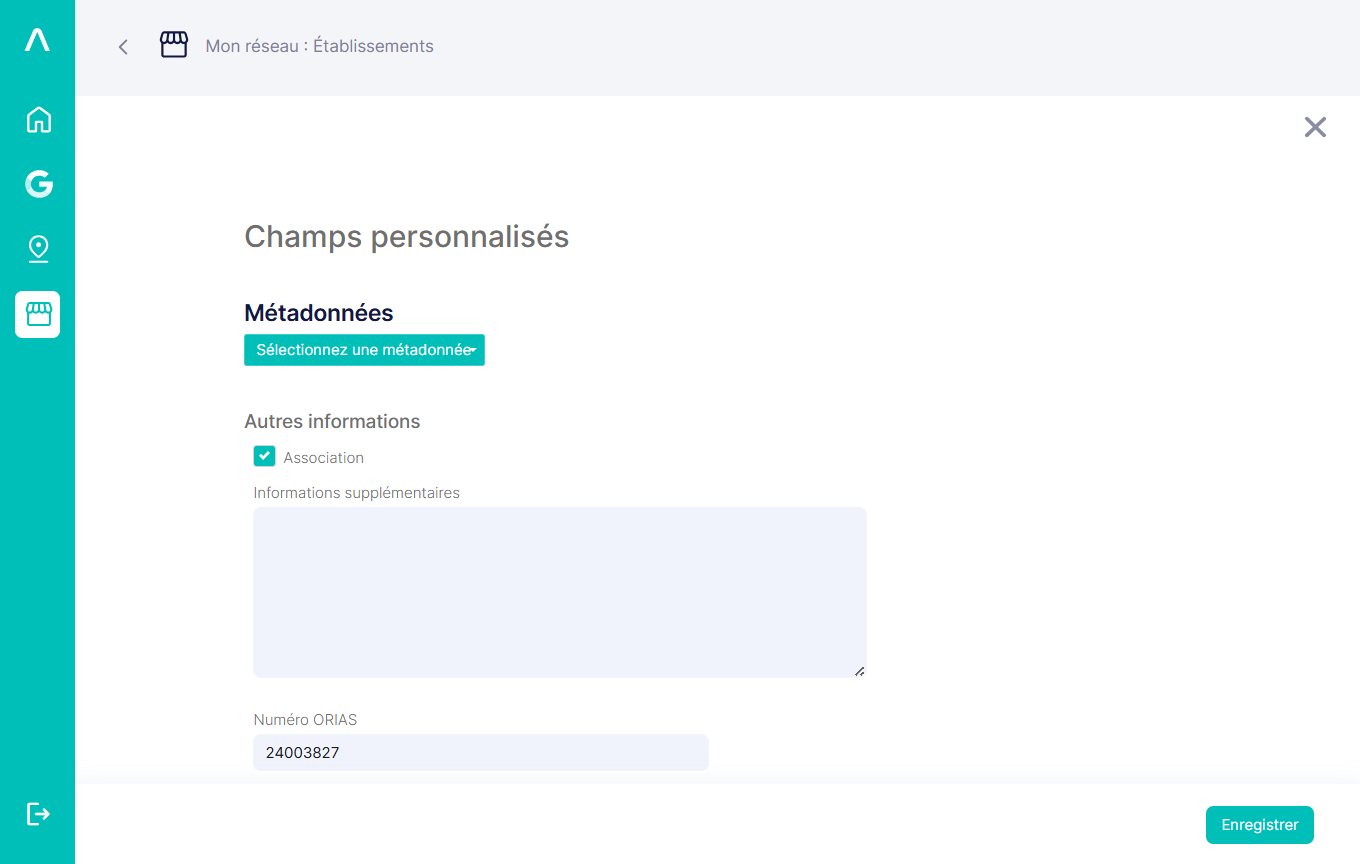
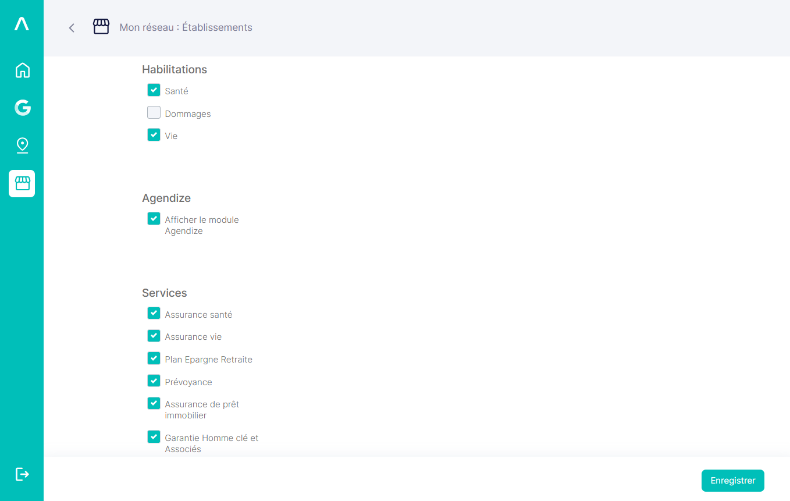
How to do this?
- First, copy the web address of your booking page (tutorial: Build your own booking URL )
- Contact your Evermaps representative to add your Agendize links to your Google listings.
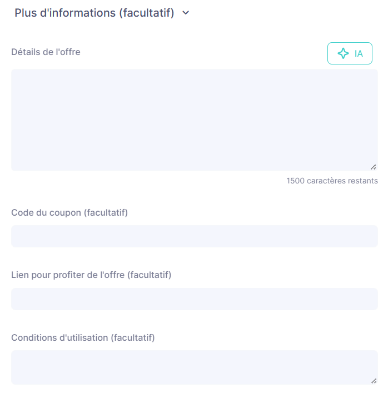
Note that, depending on your business sector, this Appointments field may not be available. If so, list your store locator or use the Google Posts feature to promote your booking links.
Would you rather redirect your Google visitors to your website? You can enter in this field the URL of your local page (Evermaps Store Locator) that includes your Agendize widget.
Prerequisites:
- Agendize online scheduling
- Enter the store locator URL in the Evermaps platform
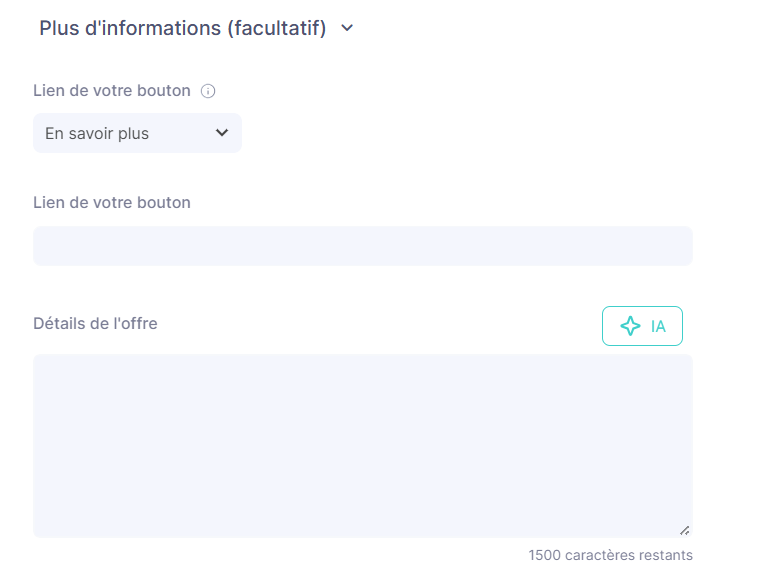
Marketing campaigns
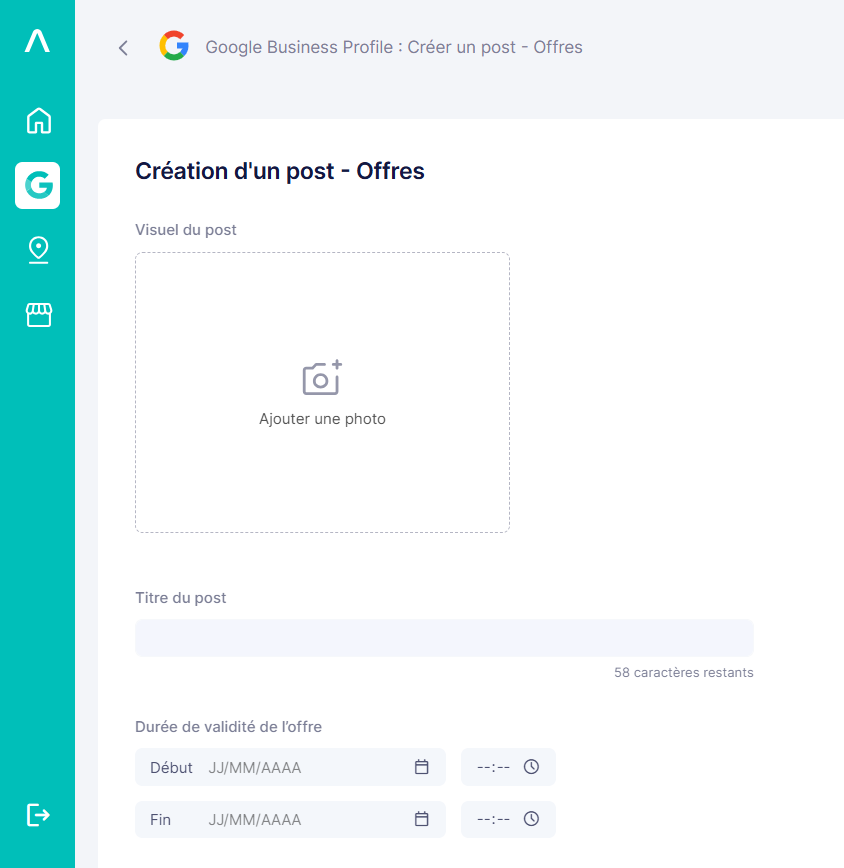
Add online booking links to your Google Posts to generate more engagement on your flagship products and services. How to write the perfect Google Post?
Requesting customer reviews after your appointments
Option 1: your Agendize Console lets you automate sending an email and/or SMS after any appointment. Message templates can be edited to adapt the content and the button link (tutorial: Google Business Profile | Collecting customer reviews)
Option 2: set up an Agendize Watcher to automatically send a JSON to your CRM connected to Evermaps (tutorial: Watchers & Webhooks API)
Prerequisites:
- Agendize online scheduling
- “Customer reviews” module in the Evermaps platform
- API keys (if using Agendize Watchers)
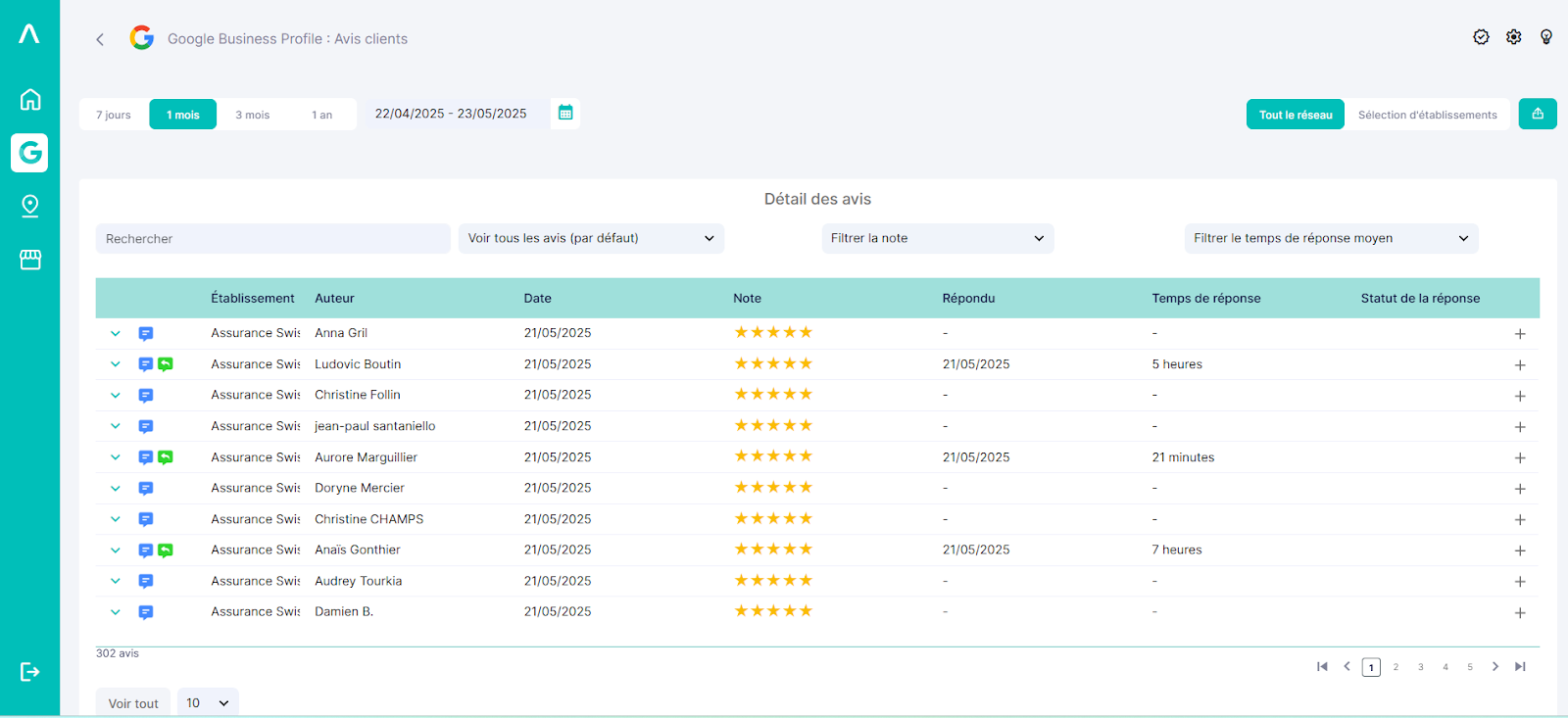
Once reviews are posted, the Evermaps Console lets you measure in a few clicks how the online reputation of your stores on Google Business Profile is evolving: change in average rating, number of reviews, geographic disparities, most frequent terms, …
Tracking your appointment sources
Remember to customize your Agendize URLs by adding the booking source (tutorial: GET and JS parameters of the scheduling widget ), for example:
- &source=store-locator to flag appointments booked from the Evermaps Store Locator
- &source=GBP to indicate appointments booked from your Google listings
- &source=Posts to indicate appointments booked from your Posts
This information will be visible in the Appointments by source report available in your Agendize console.
Prerequisites:
- Agendize online scheduling
- Agendize report