Appointment Scheduling · The basics
The emails sent to your clients (confirmation, reminder, change…) can also display your visuals: banner, access map, photo of your premises, etc. The image is added directly in the message template.
Prepare your image
The message template editor inserts an image from its web address (URL): it does not allow uploading a file from your computer. Your image must therefore be online beforehand, for example on your website, and publicly accessible through an address starting with https://.
Our advice: use a JPG or PNG image, 600 pixels wide at most (the usual width of an email) and lightweight, so that it displays quickly in every mailbox.
Insert the image in the template
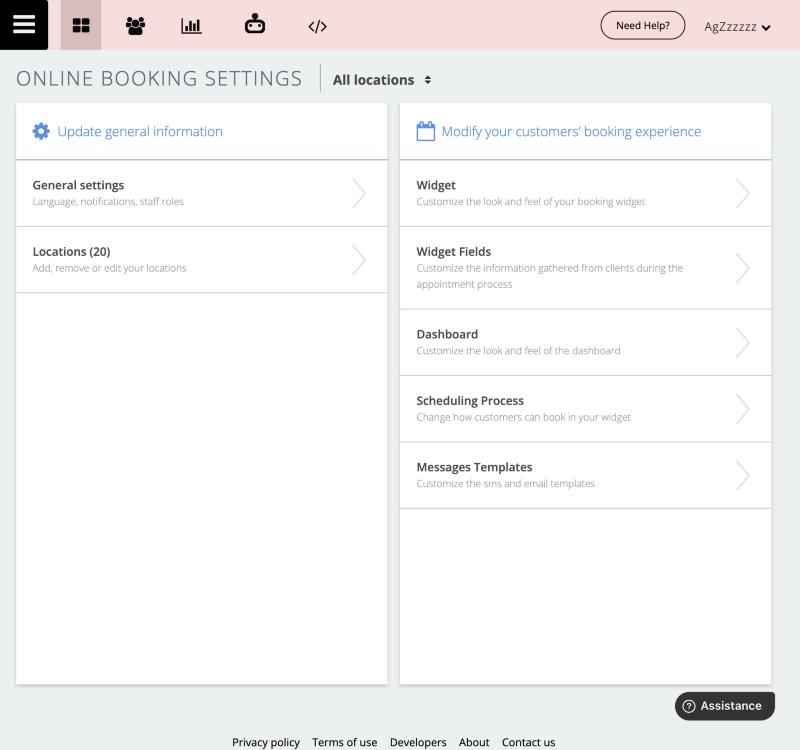
- Go to Console > Online booking settings, then click Messages Templates.
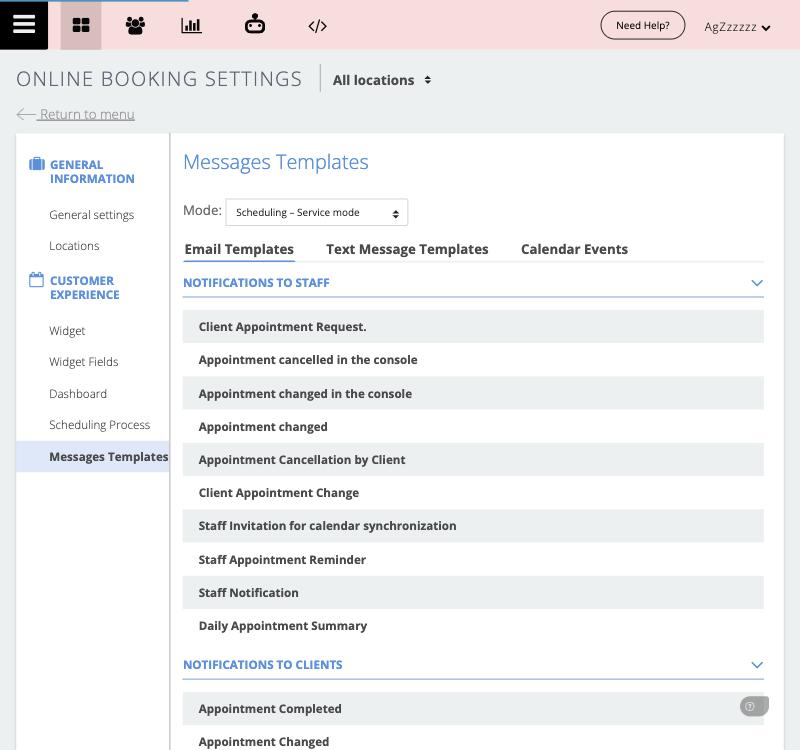
- In the Email Templates tab, under Notifications to clients, click Appointment Confirmation.
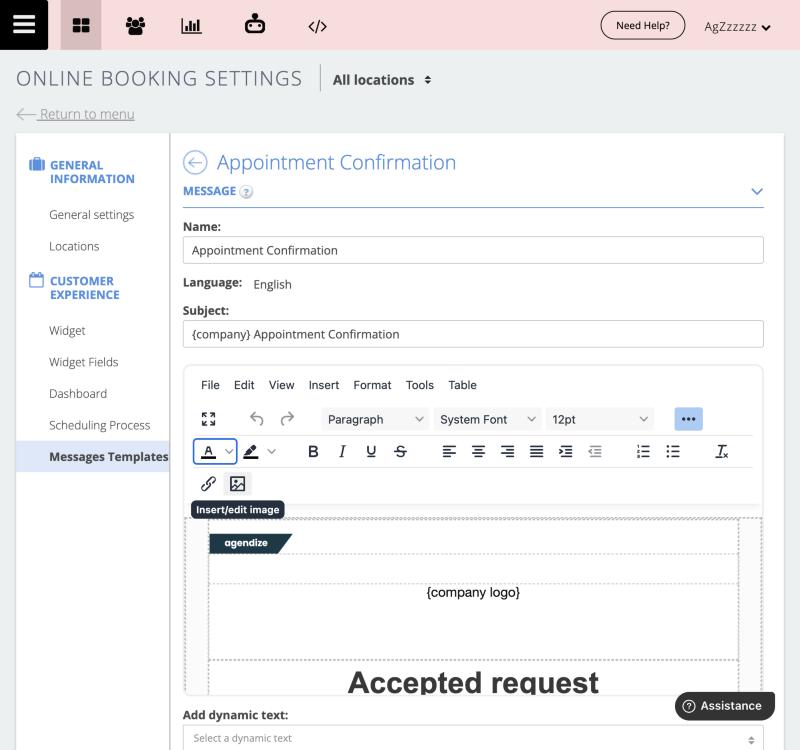
- In the email body, click where the image should appear.
- In the editor toolbar, click the three dots … to display all tools, then click the Insert/edit image icon.
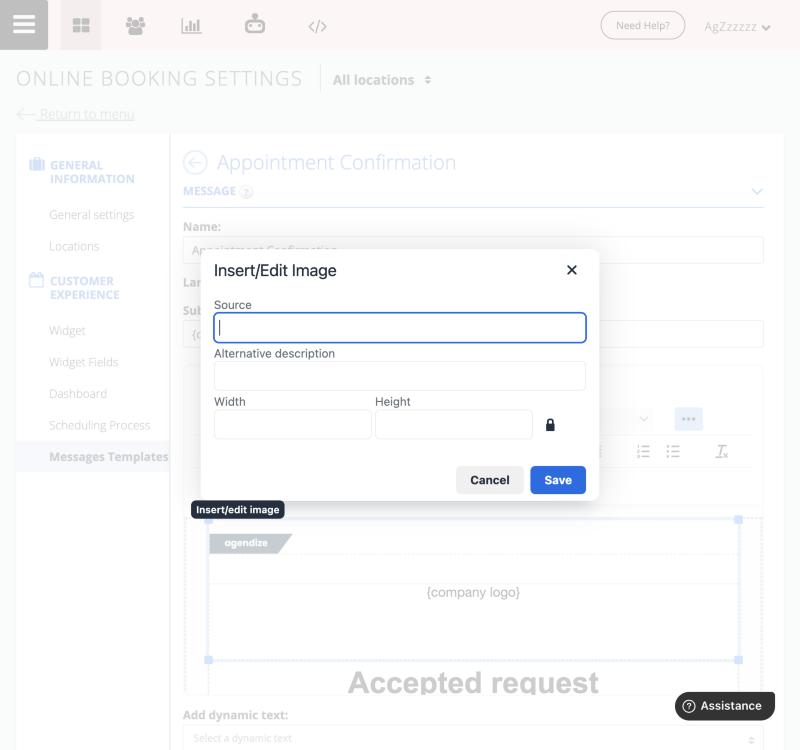
- In the Insert/Edit Image window that opens, fill in:
- Source: the web address of your image;
- Alternative description: a short text describing the image, displayed if the recipient's mailbox blocks images;
- Width / Height: the display size. They are filled in automatically; the padlock keeps the proportions if you change one of them.
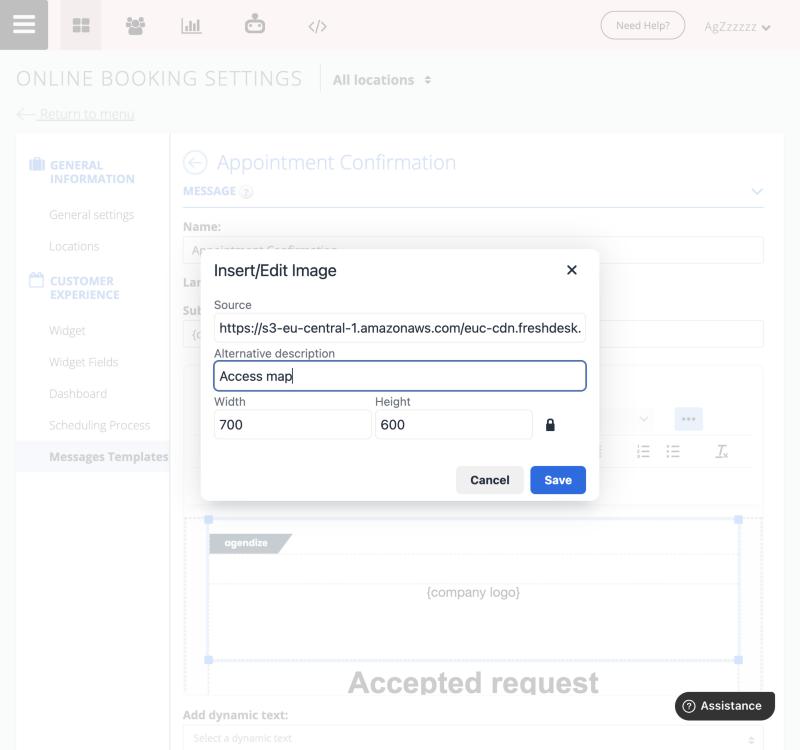
- Click Save: the image appears in the email.
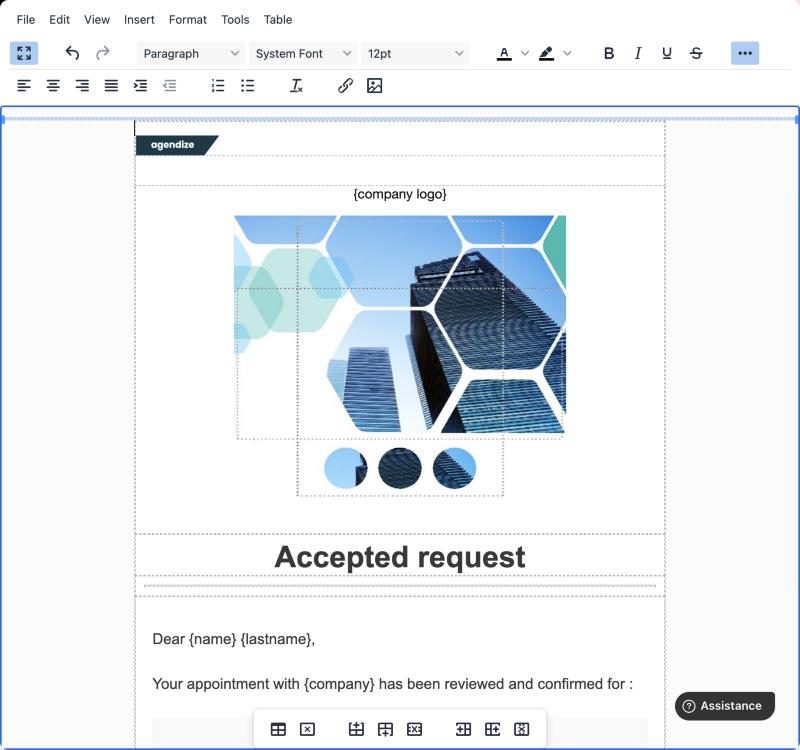
- Click Save at the bottom of the page to apply the change to the template.
To learn more about customizing templates, see Customize email, text message & ICS event templates for notifications or reminders.